Enable PREEMPT_RT
This guide covers how to enable PREEMPT_RT on the Jetson Orin Nano, transforming it into a real-time operating system (RTOS) ready for low-latency robotics applications.
Note
These notes are based on the official NVIDIA Jetson Linux Developer Guide R36.5 - Kernel Customization.
Watch the following video for a complete walkthrough of the process: [YouTube Video Link] (xxx)
1. Verify system performance
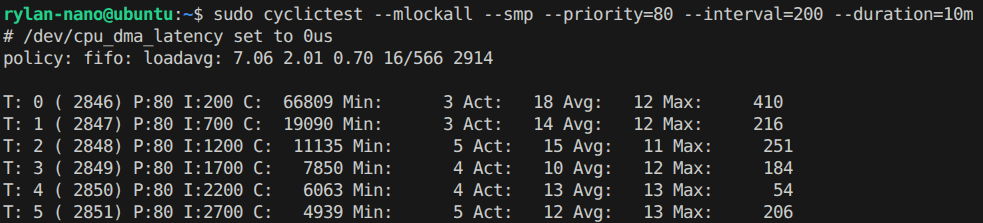
Before we jump into the build, let's establish a performance baseline. This helps us see the actual real-time improvement later on.
Check the current kernel
First, let's verify the kernel version and variant currently running on the device.
$ uname -a
# Linux ubuntu 5.15.136-tegra #1 SMP PREEMPT Tue Jan 13 01:23:45 UTC 2026 aarch64 aarch64 aarch64 GNU/Linux
Install stress-test tools
Install the necessary utilities for real-time performance measurement and system stressing.
$ sudo apt update
$ sudo apt upgrade -y

# Install RT and stress testing tools
$ sudo apt install -y rt-tests stress-ng
Run latency tests
To measure the baseline latency, run a stress test in one terminal and the cyclic test in another.
-
Terminal 1: Start the CPU and I/O stress:
-
Terminal 2: Run the latency measurement:
Example Output
2. Prerequisites
Make sure to have the source code and packages ready before moving forward. Check out Get Ready!
3. Build and enable PREEMPT_RT
Now for the fun part --> building and enabling the patch! We'll use a helper repository to streamline the process.
Download the helper repository and run the script.
Clone the helper repository
Run the build script
Note
The <install-path> should point to the root directory where the source code was extracted. The script will look for files within <install-path>/Linux_for_Tegra/source/.
4. Verify the installation
Once the script finishes, it's a good idea to double-check that everything was installed correctly.
Inspect the /boot directory
We should see Image.backup and initrd.backup files created alongside the new kernel image.
Inspect kernel modules
Check /lib/modules to ensure both the standard and RT versions of the kernel modules are present.
5. Add a fallback boot entry
Edit extlinux.conf
Open the boot configuration file with vim or preferred text editor.
Add the backup entry
Modify the configuration to include a fallback option:
- Uncomment the
backupsection. - Copy the
APPENDline from the current default section to thebackupsection. - Update the
INITRDpath to point to/boot/initrd.backup.
Example Configuration
LABEL backup
    MENU LABEL backup kernel
    LINUX /boot/Image.backup
    INITRD /boot/initrd.backup
    APPEND ${cbootargs} root=PARTUUID=cb24a353-d890-4252-9751-21d939088c7c rw rootwait rootfstype=ext4 mminit_loglevel=4 console=ttyTCU0,115200 firmware_class.path=/etc/firmware fbcon=map:0 video=efifb:off console=tty0 efi=runtime pci=pcie_bus_perf nvme.use_threaded_interrupts=1 nv-auto-config
6. Reboot
7. Verify the boot selection
During the boot process, we will be presented with the boot menu.
Select the backup entry if you ever need to roll back to the original kernel; otherwise, the system will boot using the new PREEMPT_RT image by default.
8. Verify the results
Check the RT kernel variant
Run uname -a again, and you should see the PREEMPT_RT identifier!
$ uname -a
# Linux ubuntu 5.15.136-rt-tegra #1 SMP PREEMPT_RT Tue Jan 13 01:23:45 UTC 2026 aarch64 aarch64 aarch64 GNU/Linux
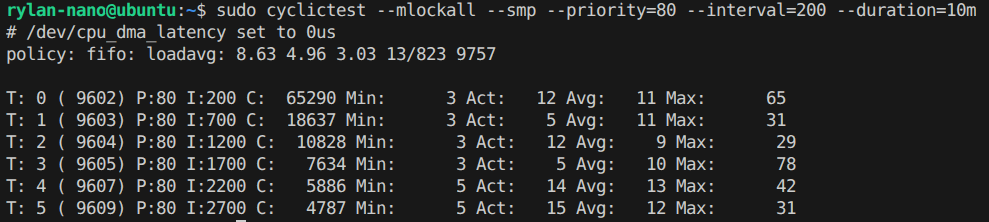
Re-run latency tests
Perform the stress test and cyclictest again to observe the improvement in latency.
Example Output
Optimizing performance (Optional)
You can boost performance even further by increasing the kernel timer frequency (CONFIG_HZ).
1. Open defconfig
2. Update configuration
3. Build and install again
Restore original images
Restore the original Image and initrd before rebuilding. This ensures the script's backup step saves the non-RT kernel as the fallback, not the RT kernel currently in /boot.
Re-run the build script
5. Reboot
Finally, reboot the system to apply the changes.